There’s a new version of Flash. Version 19.0.0.185 addresses almost two dozen security vulnerabilities in previous versions. Yes, as fast as Adobe can plug one hole, another opens up. Happily, the web is already moving away from Flash. With any luck, five years from now Flash will be a distant memory.
If you still use a web browser with Flash enabled, you need to update Flash and any related browser extensions as soon as possible.
As usual, Internet Explorer on newer versions of Windows will get its own Flash updates via Windows Update, and Chrome will auto-update itself with the latest Flash.
WordPress continues to be a victim of its own success. There are so many sites built using the WordPress software that it remains a tempting target for malicious activities. Many WordPress sites are managed by less technically-savvy people, which means that they may not be kept up to date with security patches, and may use plugins that are known to be vulnerable.
Most recently, an active malware campaign (designated “VisitorTracker” by researchers) is using thousands of compromised WordPress sites to direct site visitors to servers hosting attack code connected with the Nuclear exploit kit.
If you run a WordPress site, please make sure that it’s up to date, and that you only use plugins that are compatible with the latest version of WordPress, and that the plugins are themselves up to date. If you suspect that your site has been compromised, take it offline and rebuild it.
Not long ago, I expressed my disappointment with BitTorrent‘s 2.0 release of their Sync software. My main beef was that they had introduced a ten-folder limit on the free version, thereby rendering it almost useless.
Well, apparently BitTorrent listened to the complaints, because the just-released Sync 2.2 removes the ten-folder limit from the free version.
This is great news, especially since I’ve been unable to find a reliable replacement for Sync. Kudos to BitTorrent for listening to users and reverting the earlier decision.
There’s another new version of Chrome. The announcement for version 45.0.2454.93 is again light on details, and the log lists several minor bug fixes. It doesn’t appear that this version addresses any security vulnerabilities.
A new version of the Opera web browser was released earlier today. Version 32.0.1948.25 improves synchronization and security, and adds animated backgrounds. The bookmark tab now has a tree view, which makes it much more useful, in my opinion.
When Opera first switched from their proprietary browser engine software to the generic WebKit engine, I was concerned that Opera would become just another Chrome clone. It’s taken a while, but Opera is now well ahead of Chrome, in that it has several options for displaying a list of bookmarks in a sidebar. The included bookmark tab doesn’t appear on every page, but even if that’s a deal breaker, you can always enable the extensions sidebar and install a bookmark extension like Bookmarks by the Side.
After using the new Opera for a while this morning, I’m impressed by its speed. I’ll try using it as my main browser, and if I like it, it’ll be goodbye to Firefox, which has become bloated and unstable recently.
There’s another big crop of updates from Microsoft this month, including some fixes for Windows 10. Twelve updates were made available earlier today, and of those, five are flagged as Critical. Fifty-six separate vulnerabilities are addressed, affecting all supported versions of Windows, Microsoft Office, and SharePoint.
Microsoft continues to miss the mark in its efforts to fix the Windows Start menu. Introduced in Windows 95, the Start menu became yet another Windows garbage can (like the registry), filled with items that you had to scroll through to find what you were looking for. Many users gave up on it and continued to use their desktop for commonly-used shortcuts.
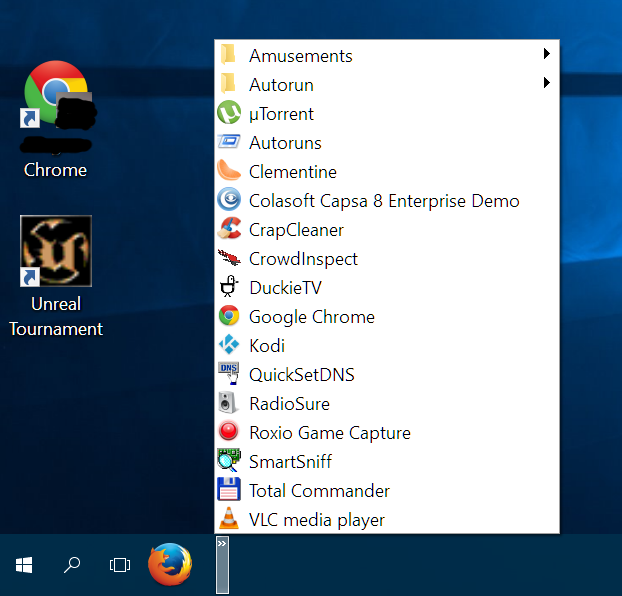
I chose a different approach, which was to customize the root folder of the Start menu, so that while the ‘Programs’ subfolder was still filled with garbage, and I rarely even opened it, the top of the Start menu contained only the shortcuts I really used. This had the advantage of keeping my desktop clear while making the Start menu easy to navigate.
Microsoft tried to clean up the Start menu in subsequent Windows releases, adding highlights for newly-installed shortcuts, fading out rarely-used shortcuts, adding a quick keyboard search, and widening the menu to two columns. None of these changes really gave me what I wanted, though, and I continued to customize the Start menu as before.
Starting with Windows 7, it was no longer possible to customize the Start menu by simply adding and removing shortcuts and folders to its top level folder. At that point I started looking into alternatives, and settled on the method described below.
Later, with Windows 8, Microsoft gave up on the Start menu completely, pushing users to the even less usable Start screen. This was a very bad idea, and users (including myself) complained bitterly. Microsoft promised to bring the Start menu back in Windows 8.1, but then reneged on their promise, choosing to wait for Windows 10 instead.
Which brings us to Windows 10. But while the Start menu is back, you still can’t really customize it. There are ways of doing it, but they are nowhere near as convenient as in the past. Many users are buying third party software to bring a usable Start menu to Windows 10.
The procedure
I’ve been using this this method to create a custom menu on the taskbar since Windows 7. Before Windows 7, it was still possible to easily customize the Start menu, so this wasn’t really necessary.
My custom menu solution, which is just a specially-configured quicklaunch toolbar. The screen shot above is from my Windows 10 testing computer.
Right-click the taskbar and uncheck Lock the taskbar if it has a checkmark next to it.
Right-click the taskbar again, select Toolbars, then New toolbar…
In the New Toolbar – Choose a folder dialog, navigate to your documents folder.
In the right hand panel, right-click in an open area and select New > Folder from the context menu.
Enter a name for the new folder. I use ‘[Menu]’ because I have a weird affinity for square brackets. Press Enter to finish creating the folder.
Make sure that the folder you just created is selected: its name should appear in the Folder box below.
Click the Select Folder button.
The new toolbar should appear somewhere on your taskbar. Exactly where it appears will vary.
Drag the new toolbar to where you want it to appear. I like mine on the far left, just to the right of any pinned app icons. To do this, you have to click and hold the mouse on the name of the toolbar, then drag it. You can drag it past and over other toolbars. This might results in a bit of a mess, but we’ll fix that shortly.
You probably want the new toolbar to take up as little space as possible on the taskbar, so make it shorter by clicking and holding on the two narrow, vertical lines at the extreme right end of the new toolbar, and dragging to the left.
At this point it will be helpful to drag a shortcut to the new toolbar, to help give you an idea of what you’re dealing with. If you right-click and drag a shortcut, when you release the mouse button, you’ll get a context menu that will allow you to choose whether you want to move or copy that shortcut.
If the toolbar is narrow enough, the shortcut will disappear and you’ll see a small double-arrow icon appear. Click this small icon to see what your new custom menu looks like.
Right-click on the new toolbar’s name, and uncheck Show Text.
Right-click on the new toolbar’s name, and uncheck Show Title.
At this point you’ll notice that with the toolbar title gone, it’s more difficult to know where to right-click on the toolbar to see its context menu. I find that right-clicking on the two vertical lines on the far left of the toolbar does the trick.
Right-click on the new toolbar, select the View menu, then choose Large Icons or Small Icons, according to your preference. I like small icons.
Carry on adding more shortcuts to the new toolbar. You can add any kind of shortcut: applications, documents, and web addresses. You can also right-click on the toolbar and select Open Folder to make this task a bit easier.
Make a final adjustment to the width of the toolbar by dragging the double lines at its right end. I like to make it wide enough to show the top couple of shortcuts right on the taskbar, which I use for my browser and email applications.
Adjust the widths of any other toolbars that got messed up earlier.
Right-click anywhere on the taskbar and select Lock the taskbar.
The new menu may occasionally be a bit slow to respond, but you’ll find that with frequent use this behaviour improves.
Blue Coat, a company that develops network security software, recently published a report on the amount of shady activity associated with top-level domains (TLDs) on the Internet. Examples of TLDs are .com, .net, and country-specific domains like .ca and .us.
A few years ago, a new batch of TLDs was introduced, including .zip, .review and .country. At the time, ICANN said the changes would “unleash the global human imagination.” Well, as was widely predicted, many of those new TLDs are apparently being used almost exclusively in connection with all kinds of malicious activity. Apparently it was mostly the imagination of criminals that was unleashed.
The newest version of Chrome is 45.0.2454.85. At least 29 security vulnerabilities were fixed in this release, and there are hints of bigger changes to come in later releases of version 45 in the associated announcement.
The change log for this version is enormous. The first reader who wants to risk a migraine to review the whole thing, and reports back to me everything that changed in this version, will win a six-pack of their favourite beer (offer expires with the next release of Chrome).
Update 2015Sep04: We now have at least a partial answer to the question. Yesterday Google published a post on the Chrome blog that explains some of the changes in Chrome 45. It’s all about performance. If you have Chrome configured to load open pages from its last session, it will now start more quickly. Chrome will now use idle time to free up memory it’s no longer using. And the expected change that prevents Flash content from auto-playing is now in effect.
Rants and musings on topics of interest. Sometimes about Windows, Linux, security and cool software.
Close
Ad-blocker not detected
Consider installing a browser extension that blocks ads and other malicious scripts in your browser to protect your privacy and security. Learn more.
 boot13